Showing posts with label PC AND MOBILE SESSION. Show all posts

Wednesday, 1 January 2014

Block programs in Windows Firewall easily with Firewall App Blocker

If you are running Windows Firewall on your operating system, and most Windows users like me probably are, then you know that the firewall is not the easiest to configure.
Adding, editing or removing blocked applications or processes for example takes time, as you need to open the firewall control menu first to do so.
To do so, you open the Windows Firewall from the start menu or Control Panel, select Inbound or Outbound Rules, click on New Rule, and configure the new rule to control the connections made by a program.
Repeat the process for each program that you want to control, and you will notice that time flies by fast.
Firewall App blocker

Firewall App Blocker has been designed for a single purpose: to improve adding program rules to Windows Firewall.
You can start the portable program right after you have unpacked it on your system. The interface is empty by default.
To add programs, drag & drop them into the interface. Alternatively, use the add button in the interface to add programs via the file browser.
Each program is listed with its name and file location in the interface. You can start any program from here with a double-click.
All programs that you add are automatically added to the rule set of Windows Firewall. You can verify that easily by selecting Options > Firewall Settings from the toolbar.
This opens the Windows Firewall control panel. Here you need to switch to the outbound rules listing, where you should see all programs that you have added listed at the top.
A right-click on an item in the program's interface opens a context menu with lots of options. You can unblock select programs here easily, which can be useful to allow Internet connections temporarily, for instance for updates.
Unblocked programs are listed in black, while blocked applications in red.
The context menu offers other features. You can block, unblock or delete all items at once, open a file's location or file properties, or delete or rename individual files from it.
There is also an option to reset the firewall configuration under Options > Reset Firewall Settings.
If you are using multiple devices, you may find the export and import feature useful. Use it to export the block list from one PC to all other PCs that you own. Note that it works best for installed software programs, and portable programs that you store in the same directory structure.


Tuesday, 24 December 2013

200 Shortcut keys for Windows 8 operating system


General Key Board Shortcuts
F1 - Display Help
F2 - Rename the selected item
F3 - Search for a file or folder
F4 - Display the address bar list in Windows Explorer
F5 - Refresh the active window
F6 - Cycle through screen elements in a window or on the desktop
F10 - Activate the menu bar in the active app
 

Alt+F4 - Close the active item, or exit the active app
Alt+Esc - Cycle through items in the order in which they were opened
Alt+underlined letter - Perform the command for that letter
Alt+Enter - Display properties for the selected item
Alt+spacebar - Open the shortcut menu for the active window
Alt+left arrow - Back
Alt+right arrow - Forward
Alt+Page Up - Move up one screen
Alt+Page Down - Move down one screen
Alt+Tab - Switch between open apps (except desktop apps)

Ctrl+F4 - Close the active document (in apps that allow you to have multiple documents open simultaneously)
Ctrl+A - Select all items in a document or window
Ctrl+C (or Ctrl+Insert) - Copy the selected item
Ctrl+R (or F5) - Refresh the active window
Ctrl+V (or Shift+Insert) - Paste the selected item
Ctrl+X - Cut the selected item
Ctrl+Z - Undo an action
Ctrl+Y - Redo an action
Ctrl+plus (+) or Ctrl+minus (-) - Zoom in or out of apps pinned to the Start screen
Ctrl+scroll wheel - Zoom in or out of apps pinned to the Start screen
Ctrl+ mouse scroll wheel - Change the size of desktop icons
Ctrl+right arrow - Move the cursor to the beginning of the next word
Ctrl+left arrow - Move the cursor to the beginning of the previous word
Ctrl+down arrow - Move the cursor to the beginning of the next paragraph
Ctrl+up arrow - Move the cursor to the beginning of the previous paragraph
Ctrl+Alt+Tab - Use the arrow keys to switch between all open apps
Ctrl with an arrow key+spacebar - Select multiple individual items in a window or on the desktop
Ctrl+Shift with an arrow key - Select a block of text
Ctrl+Esc - Open the Start screen
Ctrl+Shift+Esc - Open Task Manager
Ctrl+Shift - Switch the keyboard layout when multiple keyboard layouts are enabled
 

Shift+F10 - Display the shortcut menu for the selected item

Shift with any arrow key - Select more than one item in a window or on the desktop, or select text within a document

Shift+Delete - Delete the selected item without moving it to the Recycle Bin first
Right arrow - Open the next menu to the right, or open a submenu
Left arrow - Open the next menu to the left, or close a submenu
Esc - Cancel the current task

Ctrl+plus (+) or Ctrl+minus (-) - Zoom in or out of apps pinned to the Start screen
Ctrl+scroll wheel - Zoom in or out of apps pinned to the Start screen
Windows logo key+C - Open the Charms
Windows logo key+C - Open the commands for the app
Windows logo key+F - Open the Search charm to search files
Windows logo key+H - Open the Share charm
Windows logo key+I - Open the Settings charm
Windows logo key+J - Switch the main app and snapped app
Windows logo key+K - Open the Devices charm
Windows logo key+O - Lock the device orientation
Windows logo key+Q - Open the Search charm to search apps
Windows logo key+V - Cycle through notifications
Windows logo key+Shift+V - Cycle through notifications in reverse order
Windows logo key+W - Open the Search charm to search settings
Windows logo key+, - Temporarily peek at the desktop
Windows logo key+Z - Show the commands available in the app
Windows logo key+spacebar - Switch input language and keyboard layout
Windows logo key+Ctrl+spacebar - Change to a previously selected input
Windows logo key+Tab - Cycle through open apps (except desktop apps)

Windows logo key+Ctrl+Tab - Cycle through open apps (except desktop apps) and snaps them as they are cycled

Windows logo key+Shift+Tab - Cycle through open apps (except desktop apps) in reverse order

Windows logo key+PgUp - Move the Start screen and apps to the monitor on the left (Apps in the desktop won’t change monitors)

Windows logo key+PgDown - Move the Start screen and apps to the monitor on the right (Apps in the desktop won’t change monitors)

Windows logo key+Shift+period (.) - Snaps an app to the left
Windows logo key+period (.) - Snaps an app to the right

Dialog Box Shortcut Keys
F1 - Display Help
F4 - Display the items in the active list
Ctrl+Tab - Move forward through tabs
Ctrl+Shift+Tab - Move back through tabs
Ctrl+N (Number 1-9) - Move to Nth tab
Tab - Move forward through options
Shift+Tab - Move back through options
Alt+underlined letter - Perform the command or select the option for that letter
Enter - Replace clicking the mouse for many selected commands
Spacebar - Select or clear the check box if the active option is a check box
Backspace - Open a folder one level up if a folder is selected in the Save As or Opendialog box
Arrow keys - Select a button if the active option is a group of option buttons

Windows logo Key Shortcut Keys
Windows logo key+F1 - Open Windows Help and Support
Windows logo key - Display or hide the Start menu
Windows logo key+B - Set focus in the notification area
Windows logo key+C - Open the Charms
Windows logo key+C - Open the commands for the app
Windows logo key+D - Display and hides the desktop
Windows logo key+E - Open Computer
Windows logo key+F - Open the Search charm and search file
Windows logo key+G - Cycle through gadgets on the desktop
Windows logo key+H - Open the Share charm
Windows logo key+I - Open the Settings charm
Windows logo key+J - Switch the main app and snapped app
Windows logo key+K - Open the Devices charm
Windows logo key+L - Lock your PC or switch users
Windows logo key+M - Minimize all windows
Windows logo key+O - Lock device orientation
Windows logo key+P - Choose a presentation display mode
Windows logo key+Q - Open the Search charm and search apps
Windows logo key+R - Open the Run dialog box
Windows logo key+T - Cycle through apps on the taskbar
Windows logo key+U - Open Ease of Access Center
Windows logo key+V - Cycle through notifications
Windows logo key+Shift+V - Cycle through notifications in reverse order
Windows logo key+W - Open the Search charm and search settings
Windows logo key+X - Opens the Quick Link menu
Windows logo key+, - Temporarily peek at the desktop
Windows logo key+Z - Show the commands available in the app
Windows logo key+Pause - Display the System Properties dialog box
Windows logo key+Ctrl+F - Search for PCs (if you’re on a network)
Windows logo key+Shift+M - Restore minimized windows on the desktop

Windows logo key+number - Start the desktop app pinned to the taskbar in the position indicated by the number. If the app is already running, switch to that app.

Windows logo key+Shift+number - Start a new instance of the desktop app pinned to the taskbar in the position indicated by the number

Windows logo key+Ctrl+number - Switch to the last active window of the desktop app pinned to the taskbar in the position indicated by the number

Windows logo key+Alt+number - Open the Jump List for the desktop app pinned to the taskbar in the position indicated by the number

Windows logo key+Ctrl+Shift+number - Open a new instance of the desktop app located at the given position on the taskbar as admin

Windows logo key+Tab - Cycle through open apps (except desktop apps)

Windows logo key+Ctrl+Tab - Cycle through open apps (except desktop apps) and snaps them as they are cycled

Windows logo key+Ctrl+B - Switch to the app that displayed a message in the notification area
Windows logo key+up arrow - Maximize the desktop window
Windows logo key+down arrow - Minimize the desktop window
Windows logo key+left arrow - Maximize the desktop window to the left side of the screen
Windows logo key+right arrow - Maximize the desktop window to the right side of the screen

Windows logo key+Home - Minimize all but the active desktop window (restores all windows on second stroke)

Windows logo key+Shift+up arrow - Stretch the desktop window to the top and bottom of the screen

Windows logo key+Shift+down arrow - Restore/minimize active desktop windows vertically, maintaining width

Windows logo key+Shift+left arrow or right arrow - Move a window in the desktop from one monitor to another

Windows logo key+spacebar - Switch input language and keyboard layout
Windows logo key+Ctrl+spacebar - Change to a previously selected input
Windows logo key+Enter - Open Narrator

Windows logo key+PgUp - Move the Start screen and apps to the monitor on the left (Apps in the desktop won’t change monitors)

Windows logo key+PgDown - Move the Start screen and apps to the monitor on the right (Apps in the desktop won’t change monitors)

Windows logo key+Shift+period (.) - Snaps an app to the left
Windows logo key+period (.) - Snaps an app to the right
Windows logo key+Tab - Cycle through opens apps (except desktop apps)

Windows logo key+Shift+Tab - Cycle through opens apps (except desktop apps) in reverse order

Windows logo key+Ctrl+Tab - Cycle through opens apps (except desktop apps) and snaps them as they are cycled

Windows logo key+/ - Initiate IME reconversion
Windows logo key+Alt+Enter - Opens Windows Media Center
Windows logo key+plus (+) or minus (-) - Zoom in or out (in Magnifier)
Windows logo key+Esc - Exit Magnifier

File Explorer Shortcut Keys
Alt+D - Select the address bar
Ctrl+E - Select the search box
Ctrl+F - Select the search box
Ctrl+N - Open a new window
Ctrl+W - Close the current window
Ctrl+mouse scroll wheel - Change the size and appearance of file and folder icons
Ctrl+Shift+E - Display all folders above the selected folder
Ctrl+Shift+N - Create a new folder
Num Lock+Asterisk (*) - Display all subfolders under the selected folder
Num Lock+plus (+) - Display the contents of the selected folder
Num Lock+minus (-) - Collapse the selected folder
Alt+P - Display the preview pane
Alt+Enter - Open the Properties dialog box for the selected item
Alt+right arrow - View the next folder
Alt+up arrow - View the parent folder
Alt+left arrow - View the previous folder
Backspace - View the previous folder
Right arrow - Display the current selection (if it’s collapsed), or select the first subfolder
Left arrow - Collapse the current selection (if it’s expanded), or select the parent folder
End - Display the bottom of the active window
Home - Display the top of the active window
F11 - Maximize or minimize the active window

Taskbar Shortcut Keys
Shift+click on a taskbar button - Open a app or quickly open another instance of a app
Ctrl+Shift+click on a taskbar button - Open a app as an administrator
Shift+Right-click on a taskbar button - Show the window menu for the app
Shift+Right-click on a grouped taskbar button - Show the window menu for the group
Ctrl+Click on a grouped taskbar button - Cycle through the windows of the group

Ease of Access Shortcut Keys
Right Shift for eight seconds - Turn Filter Keys on and off
Left Alt+Left Shift+PrtScn - Turn High Contrast on or off
Left Alt+Left Shift+Num Lock - Turn Mouse Keys on or off
Shift five times - Turn Sticky Keys on or off
Num Lock for five seconds - Turn Toggle Keys on or off
Windows logo key+U - Open the Ease of Access Center

Magnifier Shortcut Keys
Windows logo key+plus (+) or minus (-) - Zoom in or out
Ctrl+Alt+spacebar - Preview the desktop in full-screen mode
Ctrl+Alt+D - Switch to docked mode
Ctrl+Alt+F - Switch to full-screen mode
Ctrl+Alt+I - Invert colors
Ctrl+Alt+L - Switch to lens mode
Ctrl+Alt+R - Resize the lens
Ctrl+Alt+arrow keys - Pan in the direction of the arrow keys
Windows logo key+Esc - Exit Magnifier

Narrator Shortcut Keys
Space or Enter - Activate current item
Tab and arrow keys - Move around on the screen
Ctrl - Stop reading
Caps Lock+D - Read item
Caps Lock+M - Start reading
Caps Lock+H - Read document
Caps Lock+V - Repeat phrase
Caps Lock+W - Read window
Caps Lock+Page Up/Down - Increase or decrease the volume of the voice
Caps Lock+plus (+) or minus (-) - Increase or decrease the speed of the voice
Caps Lock+spacebar - Do default action
Caps Lock+left or right arrows - Move to previous/next item
Caps Lock+F2 - Show commands for current item
Press Caps Lock twice in quick succession - Turn Caps Lock on or off
Caps Lock + Esc - Exit Narrator

Saturday, 21 December 2013

Mobogenie Android destop manager


Mobogenie is a manager for your Android Smartphone. And just like a smart manager, Mobogenie helps manage, back up and restore the all-important data in your phone.

WITH MOBOGENIE YOU CAN CARRY OUT THE FOLLOWING ACTIONS

Download App straight to your phone from your pc
Select free apps and games from the store and install them on to your phone... at no extra data charges
Manage and edit contacts easily
You can add new and edit your existing contact right from your pc.
Download the best videos,music and photos on the web
You can choose from the best and the latest videos,musics or videos and download them to your Android device, all to be enjoyed on the go.
Manager for your inbox
You can read your inbox messages from your pc and also use it to send texts to not one but several people at one go.
Back up and restore with one click
You can use Mobogenie to back up your data with a single click! And you can also restore this data to your phone or to another Android device.

How to make it work.
When you connect your Android device to Mobogenie for the very first time, a 'Mobogenie Phone Daemon' is installed on your phone. Please note that it is absolutely necessary to enable a smooth connection and management of the device the next time you use Mobogenie.
However, the application does not store or make any use of your personal data.

Wednesday, 18 December 2013

Add "Take Ownership" to Explorer Right-Click Menu in Win 7 or Vista

Taking ownership of system files or folders in Windows 7 or Vista is taking total control of your system files.i.e you can edit the files insides system folder easily without getting error message that you have no permission to edit the file.
This is usually archive using the GUI or the command line which requires many steps.

But thanks to this registry hack that will gives you a menu item for “Take Ownership” that will handle all the steps for you

Here’s what the new right-click menu will look like after installing this registry hack.
You might also like: How to add different colour to your folder


 How to install
Download and unzip the files contained in the zipfile. Double-click the InstallTakeOwnership.reg file and click through the prompts. No reboot necessary.
 To uninstall

Double-click the RemoveTakeOwnership.reg file and click through the prompts. No reboot necessary.

>>Download  

Tuesday, 17 December 2013

Google has added 3 Nigerian languages to its Translate


Google search engine has added the 3 major Nigerian languages, Igbo, Hausa and Yoruba to its Google Translate. Google Translate is a free automatic language translation service by Google. It works without the intervention of human translators, using state-of-the-art technology instead. Other African languages also included are South African Zulu and Somali Language. Google translate already has 71 languages on its platform.

That means you can translate your favourite web pages/words to your own dialect.

Google translate

Sunday, 15 December 2013

Check out the smart ring

Smartwatches have barely been on sale for six months yet that hasn’t stopped engineers moving onto the next level of wearable high-tech devices - the smart ring.

Called Smarty Ring, the stainless steel gadget connects to smartphones via Bluetooth using a dedicated app. 

Its LED screen lights up each time the wearer gets an email, text message, Facebook and Twitter notifications and phone calls, and the ring can also be used as a remote control


 The ring battery is charged on a wireless charging pad, pictured, that can also be used to charge a smartphone.
The ring is expected to retail at $275 (£167) when it goes on sale from April next year and this includes the charging pad

Tuesday, 10 December 2013

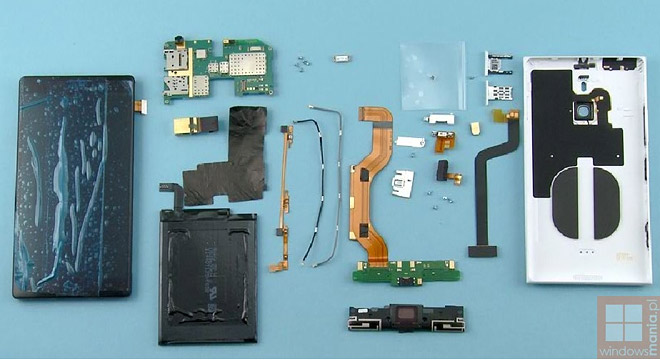
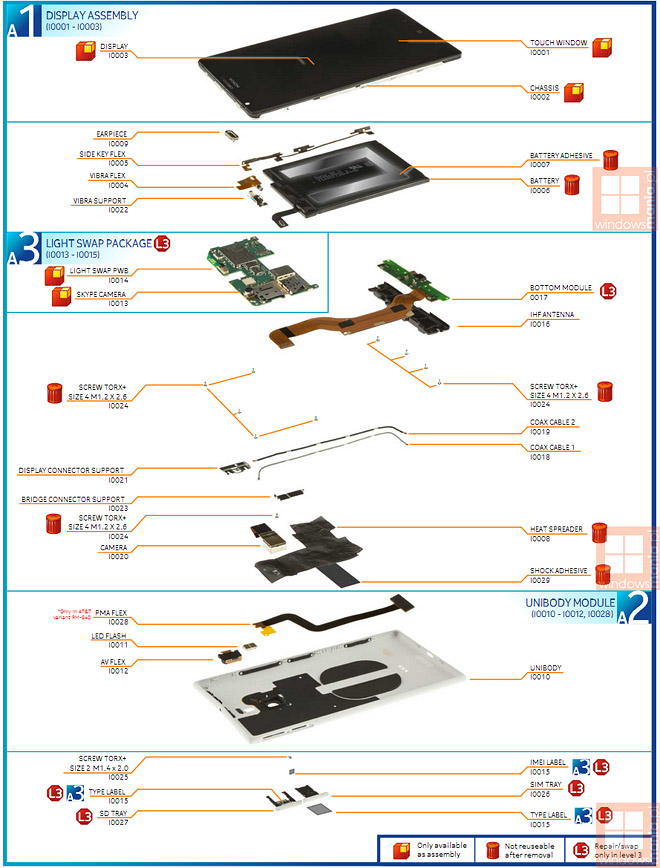
Nokia Lumia 1520 disassembled with all part labeled

Nokia Lumia 1520 the first with a 1080p screen, the first with a quad-core Krait processor, one of the first two 6″ Nokia phablets. It even has a new PureView camera.

pics from gsmarena

pics from gsmarena

Saturday, 7 December 2013

How to enable guest browsing in Chrome for Windows


 Have you ever gone back to your computer after letting someone use it for "just a second" and found it in disarray? Maybe they logged you out of all your accounts because they wanted to check Facebook or their e-mail.

To enable guest browsing on chrome browser for windows follow this simple steps:

Step 1: In the Chrome address bar, enter: chrome://flags/#enable-new-profile-management

Step 2: Click on the Enable link under "Enable new profile management system" and then click on the Relaunch Now button at the bottom of the browser.

  
Step 3: After Chrome relaunches, you'll see an avatar in the upper left-hand corner. Click on it, then select "Browse as guest" to launch the guest browser window

Step 4: Welcome your guest to the word of chrome


PLS NOTE : Guest browsing is only available in Chrome for Windows right now and because it's an experimental feature, it's possible that enabling it may cause odd behavior or instability

Friday, 22 November 2013

How to find Any Software Serial Key

Ok, this is a little trick that i usually use to find cd keys with Google.
If you‘re looking for a serial number for Nero (for example) go to google.com and type Nero 94FBR and it'll bring it up this works great in Google.

HOW DOES THIS WORK?

Quite simple really.
94FBR 
By searching for the product name and 94fbr, you guarantee two things.
1)The pages that are returned are pages dealing specifically with the product you're wantinga serial for. 2)Because 94FBR is part of a serial number, and only part of a serial number, you guarantee.
is part of a Office 2000 Pro cd key that is widely distributed as it bypasses the activation requirements of Office 2K Pro.

Test how effective your AntiVirus is

Many People have different opinions regarding the best anti virus
software, Many say Symantec, the others swear by Kaspersky and the rest
by Avast.
But Here is a simple but very effective Test by which you can check the effectiveness of your Anti Virus Software irrespective of any
particular Anti Virus Software that you might be using, If your
Anti-Virus software passes this test successfully then you can be sure
its a good Anti Virus Software and will do it’s best to protect your PC
from Viruses and Malware

In this tutorial you will see how you can check the strength of your antivirus

Just follow the simple steps and check if you are really protected or not ??


Step 1 :- Open Notepad

Step 2 :- Copy & paste the following codes below :

X5O!P%@AP[4\PZX54(P^)7CC)7}$EICAR-STANDARD-ANTIVIRUS-TEST-FILE!$H+H*
Step 3 :- Save the file as anything.exe

Now run a security scan for this file…

If your antivirus can detect this you can assume that you are protected and your antivirus has a good strength but if it fails, its time to change it!

Note : The file’s extension must be .exe and should be saved like “all files” in file type otherwise the file will not work.

Monday, 18 November 2013

Some cool features of the new Android KitKat 4.4

Android 4.4 KitKat is the latest update to the Google’s Android operating system which was released last month along with Google’s flagship phone Nexus 5. Let us see some of the cool new features in the latest Android Operating system.

1. “Ok Google”

Just say, “Ok Google” to activate the phone without touching it. Users can launch a voice search, send a text, get driving directions or play a song with the voice command. This feature was introduced in Moto X. Now it is available to all who are using KitKat.
android 4.4 features

2. New Caller ID

This is one of the new interesting feature of KitKat. For calls from numbers not listed in the user’s contacts, Android 4.4 will look for matches from businesses with a local listing on Google Maps.

3. Integrated Hangouts

The new Hangouts app on Android 4.4 also displays SMS and MMS messages.
android 4.4 features

4. Printing

Android 4.4 allows users to print photos, documents, and web pages from their phone or tablet. Users can print to any printer connected to Google Cloud Print, to HP ePrint printers, and to other printers that have apps in the Google Play Store.
android 4.4 features

5. Integrated Emonji

Android KitKat brings in the popular japanese Emoji characters to the default Android keyboard.
android 4.4 features

6. Advanced Multitasking

Android 4.4 takes system performance to an all-time high by optimizing memory and improving your touch-screen so that it responds faster and more accurately than ever before.

7. Immersive mode

This is also a new feature introduced in KitKat. The new immersive mode gives a full screen experience hiding all controls while reading a book, watching a movie or playing a game. Swiping on the edges brings back the status bar and navigation button.
android 4.4 features

8. Full Screen Album Art on Lock screen

KitKat will display a full screen album art on the lock screen while listening to music or streaming via Chromecast.
android 4.4 features

9. Improved UI

The app drawer now has a transparent background, so it shows the same wallpaper as your home screen. The wallpaper also extends through the system buttons and notification tray.

10. Support for low-end Smartphones

KitKat is said to support phones with as little as 512MB of memory.Android KitKat will be able to run on inexpensive, low-end smartphones as well as the most advanced devices and this also could make the Android software more attractive to third-party app developers, who have been frustrated by what they call the “fragmented” nature of Android devices.

Some other features

  • Save files to Google Drive or another online storage system instead of your local storage.
  • Android 4.4 adds support for new types of sensors including step detectors, step counters, and geomagnetic rotation.
  • Google wants to make it easier for developers to create third-party TV controller apps that work across devices by building support for them into the operating system itself.
  • There is a inbuilt screen recording utility aimed at developers who want to record high-quality MP4 videos.
  • There is system-level support for NFC. It works with any mobile carrier and lets apps manage your data either using your device or cloud storage.
  • The new phone app automatically prioritizes your contacts based on the people you talk to the most.
  • Android 4.4 now supports the Message Access Profile (MAP) so Bluetooth-enabled cars can exchange messages with your devices.
These are some of the cool features :)
Share your experiences here

Thursday, 7 November 2013

Chrome to block third-party add-ons


Google has confirmed that it will be locking down the Chrome browser and only allowing extensions from the Chrome Web Store.

According to Google, this decision is meant to block malicious extensions from being installed. However, there are plenty of popular Chrome extensions not available in the Web Store, such as YouTube video downloaders.

Google already disables the installation of extensions from third-party sources by default - but it's possible to install them by dragging and dropping the relevant .crx file in the browser.

In a blog post, Google's Eric Kay claimed that malicious extensions which override browser settings are "a leading cause of complaints from our Windows users".

"As part of our continuing security efforts, we're announcing a stronger measure to protect Windows users: starting in January on the Windows stable and beta channels, we'll require all extensions to be hosted in the Chrome Web Store."

Developer versions of Chrome will not be subject to the change

MTN, Ericsson, Huawei, sign managed services contract


Nigeria’s leading Information and communications technology (ICT) company, MTN has signed managed services contract with global telecommunications solutions providers, Ericsson and Huawei, opening another chapter in the company’s telecommunications operations in Nigeria.

Under the terms of the contracts, Ericsson and Huawei will take over the management, optimisation and field maintenance of MTN’s network infrastructure in all its operational regions in the country thus allowing MTN to focus on providing a superior customer experience across all its network offerings.

MTN will retain ownership and full control of its network assets and continue to have responsibility for strategic design and planning, as well as equipment purchasing decisions.

Mr. Michael Ikpoki, Chief Executive Officer, MTN Nigeria, stated that: "This engagement with Ericsson and Huawei is a logical step forward in the course of the steady evolution of the telecommunications industry.”

He added that “It is a deal that speaks to our desire to add tangible value to the overall customer experience on our network, as we yield the routine management and maintenance of our infrastructure to these global players, to enable us focus on meeting and exceeding the expectations of our customers.”

He concluded by saying, “The managed services decision is consistent with our commitment to delivering a bold new digital world to our esteemed customers across Nigeria."

Thursday, 31 October 2013

Uses of Function Keys (F1 to F12)

  • This function key is used to ask for Help. Almost every program allow this function key to help the users. When you are in a program and need help, then just press F1 key the help screen will open.
  • Enter CMOS Setup
  • Window key + F1 would open the Microsoft Windows help and support center.
  • Open the Task Panel.
F2
  • F2 Function Key is used to Rename a selected icon, file, folder or drive. 
  • Alt + Ctrl + F2 opens document window in Microsoft word
  • Ctrl + F2 displays the Print Preview window in Microsoft Word.
  • Function Key is also used to open the BIOS Settings during booting a computer..
F3
  • Often opens a search feature for many programs including Microsoft Windows when at the Window Desktop
  • In MS-DOS or Windows command line F3 will repeat the last command.
  • Shift + F3 will change the text in Microsoft Word from upper to lower case or a capital letter at the beginning of every word.
  • Windows key + F3 opens the Advanced find window in Microsoft Outlook.
  • Open Mission Control on an Apple computer running Mac OS X.
F4
  • Open find window in Windows 95 to XP.
  • Open the address bar in Windows Explorer and Internet Explorer.
  • Repeat the last action performed (Word 2000+)
  • Alt + F4 will close the program window currently active in Microsoft Windows.
  • Ctrl + F4 will close the open window within the current active window in Microsoft Windows.
F5
  • In all modern Internet browsers pressing F5 will refresh or reload the page or document window.
  • Open the find, replace, and go to window in Microsoft Word.
  • Starts a slideshow in PowerPoint.
F6
  • Move the cursor to the Address bar in Internet Explorer, Mozilla Firefox, and most other Internet browsers.
  •  Press Ctrl+Shift+F6 to move from one document to another one when you are in Microsoft Office Word.
F7
  • Commonly used to check spell and grammar check a document in Microsoft programs such as Microsoft Word, Outlook, etc.
  • Shift + F7 runs a Thesaurus check on the word highlighted.
  • Turns off or on Caret browsing in Mozilla Firefox.
F8
  • Function key used to enter the Windows startup menu, commonly used to access Windows Safe Mode.
F9
  • With Mac OS 10.3 or later shows all open Windows.
  • Using the Fn key + F9 at the same time will open Mission Control on an Apple computer running Mac OS X.
F10
  • In Microsoft Windows activates the menu bar of an open application.
  • Shift + F10 is the same as right-clicking on a highlighted icon, file, or Internet link.
  • Access the hidden recovery partition on HP and Sony computers.
  • Enter CMOS Setup.
  • With Mac OS 10.3 or later shows all open Windows for active program.
F11
  • Full-screen mode in all modern Internet browsers.
  • After pressing F11 Function Key, all of the latest version of Internet Browsers go to Full Screen Mood. Again press F11 to close the Full Scree Mood.
  • During booting press Ctrl+F11 to access the Hidden Recovery Partition on Dell Computers.
F12
  • Open the Save as window in Microsoft Word.
  • Shift + F12 save the Microsoft Word document.
  • Ctrl + Shift + F12 prints a document in Microsoft Word.
  • Preview a page in Microsoft Expression Web

Things You Need To Know Before Buying A New Laptop


if you have decided to buy a Laptop then you have to know some basic things about laptop before buying it. Hope this will help you to choose the Perfect Laptop that will do the job you need it for


1. Battery Life or Backup Time.
 Before buying a Laptop you have to consider the Backup Time of its Battery. Because long time Battery Life is so essential for a Laptop especially in area where is electricity is not that available.
2. Weight of a Laptop
You may feel pain in your solder after carrying your Laptop for a long time. So you should try to buy a Laptop with light weight. 
3. Configuration of the Laptop
The nature of the job you needed your Laptop for will determine the Configuration that is best for you.

If you are a Game freak, a Programmer or a Graphic Designer you might have to buy a Laptop with high processing speed and with enough storage space.
So if you want to buy a Laptop with 4 GB RAM then the other accessories will be also high of that Laptop. The Hard Disk Drive's memory will be also 500 GB or more. The Processor will also be Second Generation Core i5 or Core i7.
 But If you know that you will use your Laptop only for office work and you will mainly use simple MS Office Programs or something like this. Then you needn't to buy a Laptop of high performance spending a lots of money.
4.  Installed Operating System in Laptop
 You may see that there is a great difference between two same model laptops. Because one of them is with Original Operating System and the another one is with Pirated Operating System.
 I think the 89% of the Computer Users use Pirated Windows Operating System in Nigeria. Because they don't have the required money to buy an Original Operating System. 
Though Linux, Ubuntu, etc are some example of free Operating System Software but these Operating System Software are not that easy to operate on like  windows. 
Although windows might not be the easiest but believe me it's easier than Linux

BBM scores 20 million new subscibers in a week

Since the BBM rollout on iOS and Android resumed 7 days ago, BBM has gathered 20 million new users.
That’s active users and not just downloads and is a serious step up from the 5 million in the opening 8 hours of up time.
BlackBerry has also announced that it has removed the waiting in line on iOS and Android and users can now activate BBM right away.
BBM is regarded as a top tier communication tool. It features a more secure way of sharing your information (not everyone that has your mobile number can see your information), as well as delivered and read statuses.

 
Copyright @ 2013 JosephozBytes.
Designed by Josephozbytes & Sponsored By Josephos